Setting up a YubiKey for Biocoded
To setup your Yubikey authentication method for Biocoded, you will need to download official Yubikey manager from Yubico and follow these instructions.
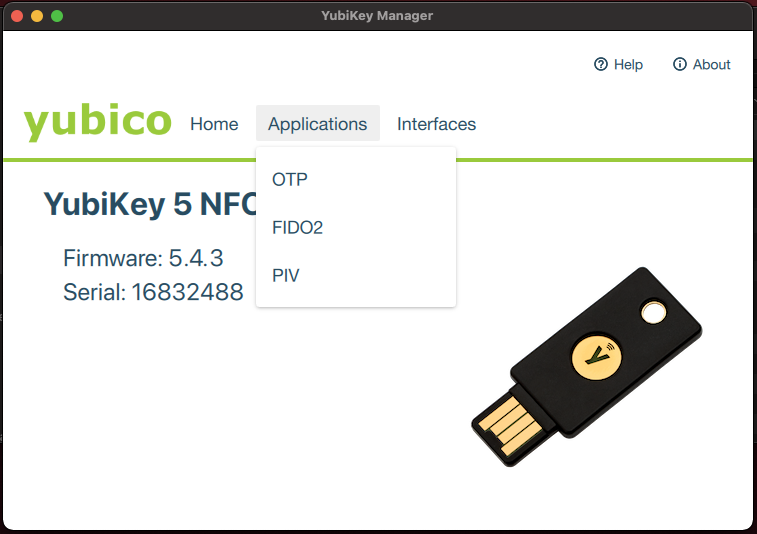
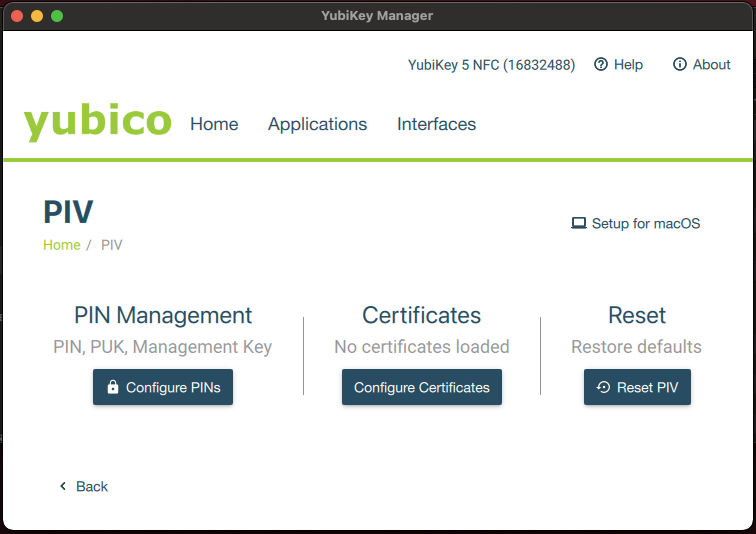
Open Yubikey Manager and insert your Yubikey into an empty USB slot. Select "Applications" and "PIV". Here you can generate a certificate needed to unlock your app or change the PIN for your Yubikey.
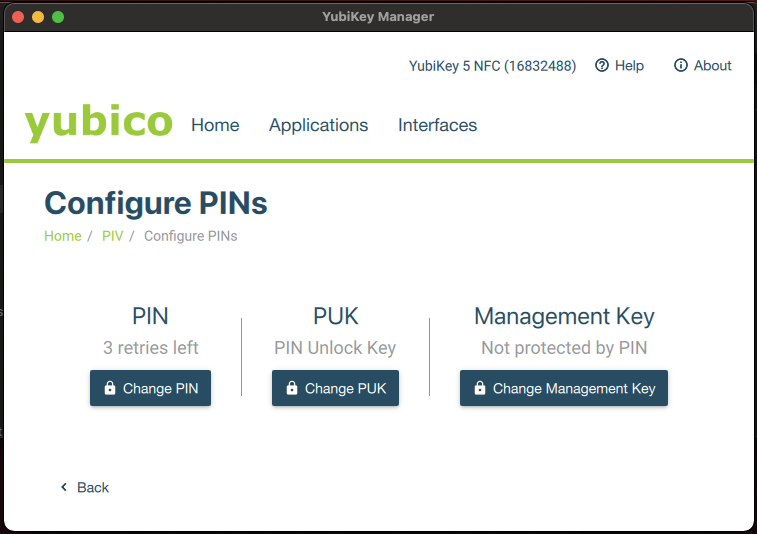
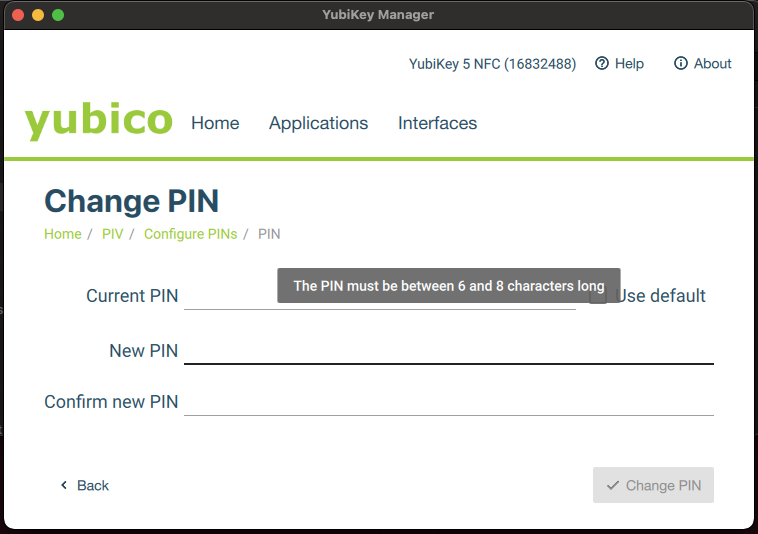
To change the PIN of your Yubikey, select "Change PIN". There you can enter your current PIN, or if you did not set any yet, you can click "Use default" and then enter your new PIN twice. Your PIN must be between 6 and 8 characters long.
To generate a certificate, click "Configure certificates", "Key Management" and then "Generate".
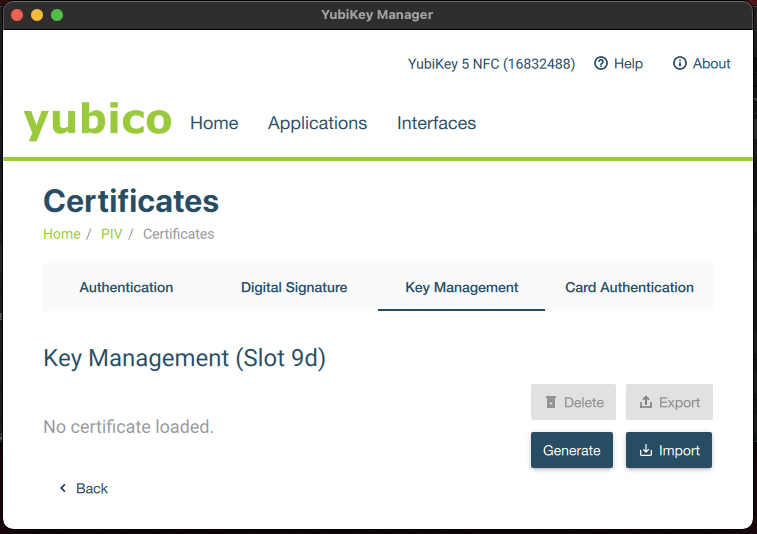
Then you select "Self-signed certificate" and click "Next".
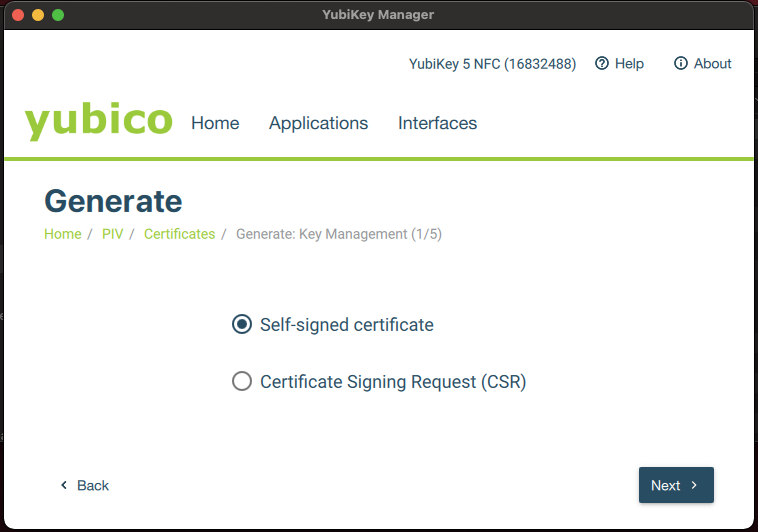
From the drop-down menu, you select "ECCP256" and click "Next".
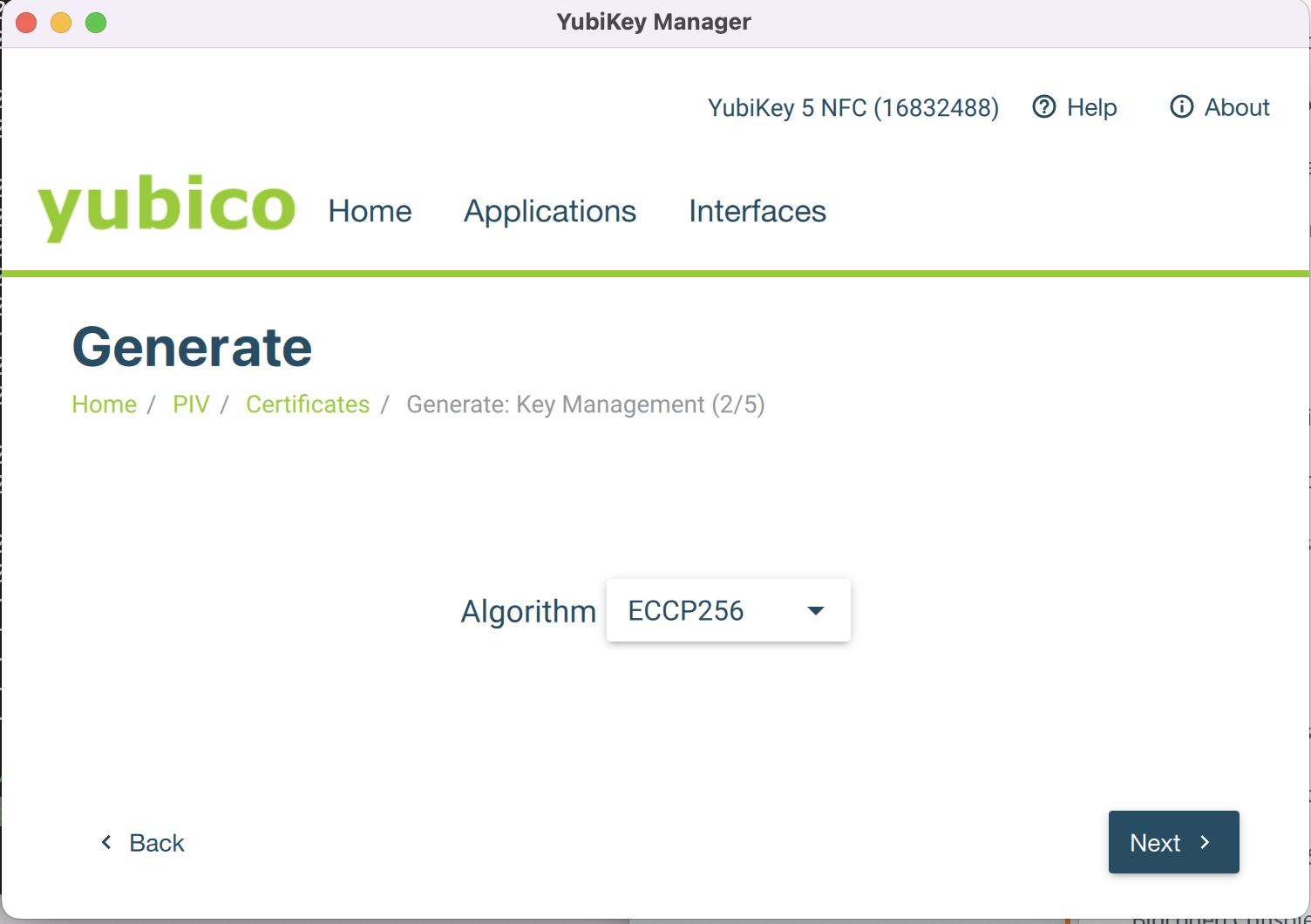
Then you enter a name and click "Next" again.
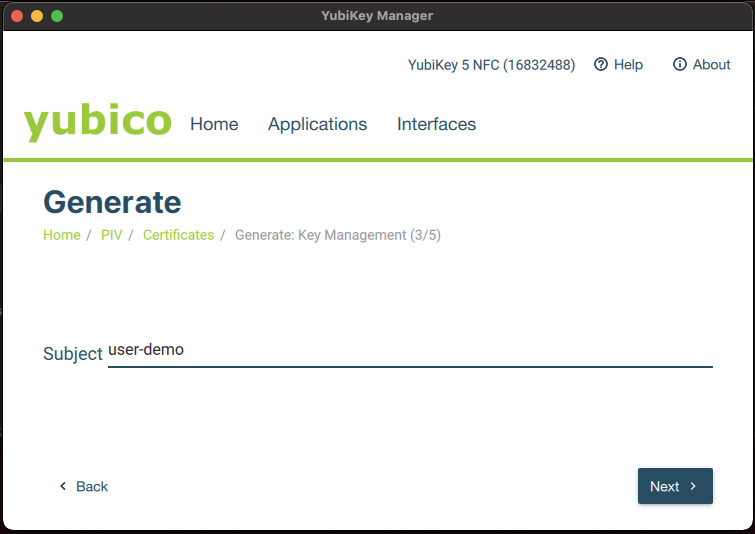
Next you select the expiration date for your certificate, click "Next" and then "Generate".
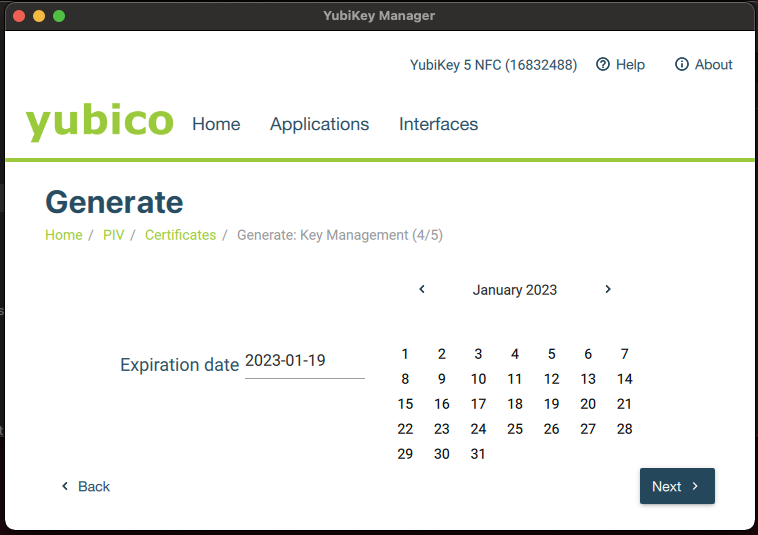
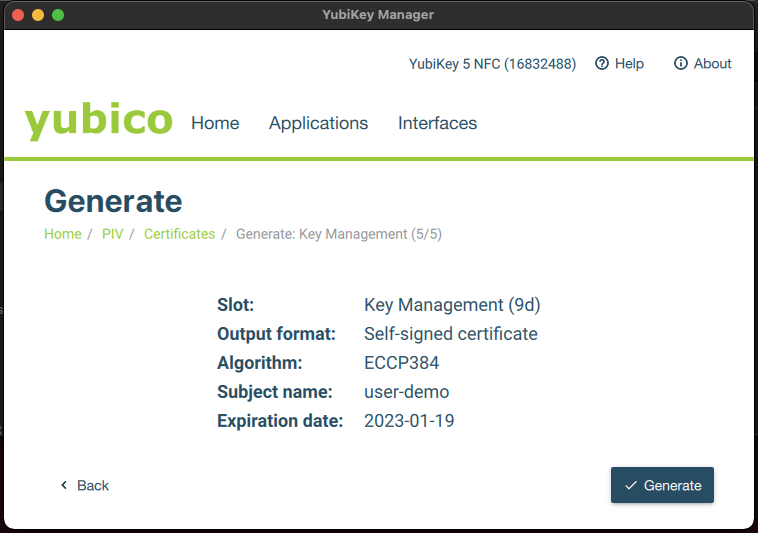
You will be prompted to enter the management key (select "Use default" if you did not change it) and the PIN of your Yubikey key. After clicking "OK" a certificate is generated.
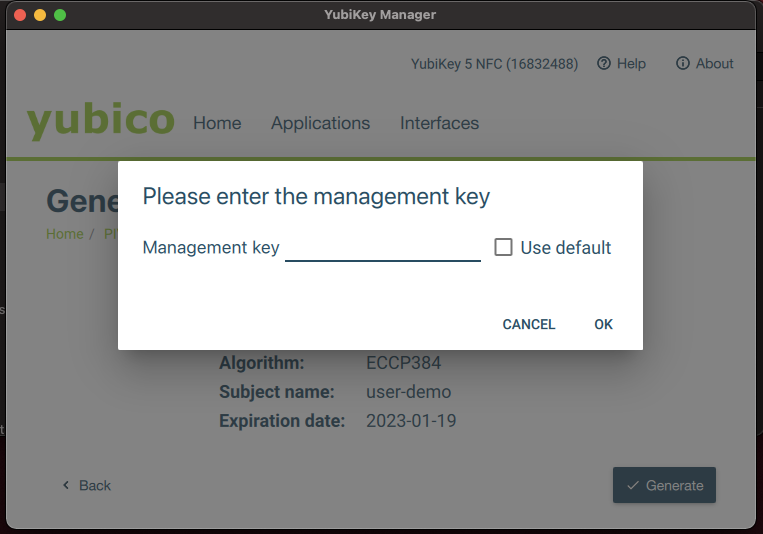
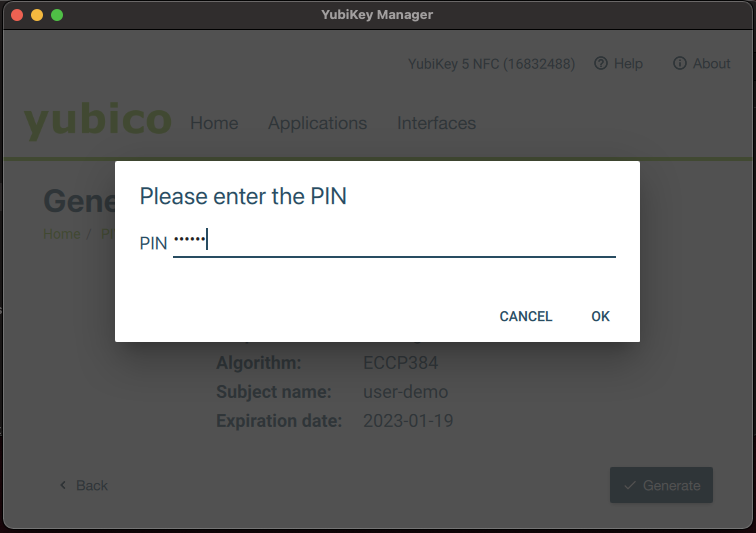
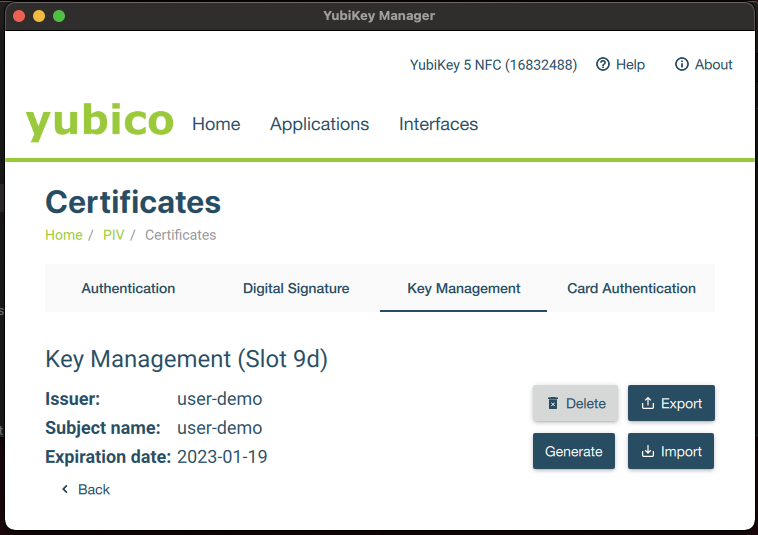
Now you are ready to turn on Yubikey authentication method for Biocoded.